
In this article you will learn how to add points to or remove points from your Member’s account from within your Dashboard account.
Things to Know
-
Only an Admin, Customer Support, Franchisee - Insights & Support, Franchisee - Insights, Marketing & Support, or Franchisee - Insights, Support & Lite have permissions to add points to Member accounts.
Add Points to or Remove Points from a Member Account
-
Navigate to the Support / Members.
-
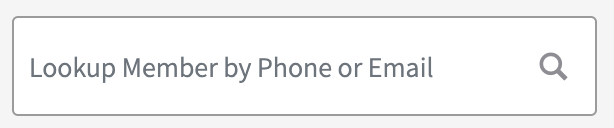
Look up your Member by their account phone number or email address.
-
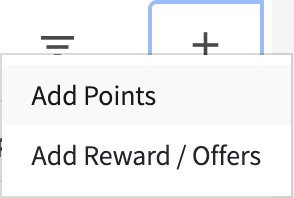
Click on the “+” button and select Add Points.
-
Enter in the number of points to be added in the Add Quantity field.
Note: If you enter a negative value (e.g. -10 points removes 10 points), points will be removed from the Member’s account.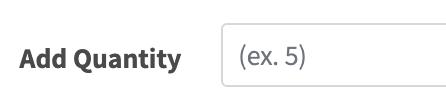
-
Select the Reason you are adding points (e.g., error redeeming in-store, missing reward, member gratitude).

-
Click Add.
Note: When you are removing points, the Dashboard will identify the action as Points Added, but the corresponding points will be removed from the Member account.