
In this article you will learn how to add offers to your Member’s account from within your Dashboard account.
Things to Know
-
Only an Admin, Customer Support, Franchisee - Insights & Support, Franchisee - Insights, Marketing & Support, or Franchisee - Insights, Support & Lite have permissions to add points to Member accounts.
Add Reward/Offer to a Member’s Account
-
Navigate to the Support / Members.
-
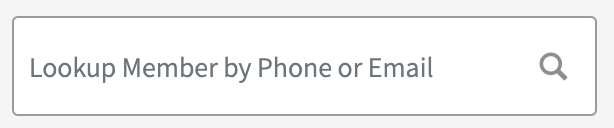
Look up your Member by their account phone number or email address.
-
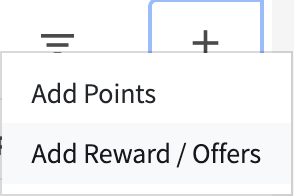
Click on the “+” button and select Add Reward/Offers.
-
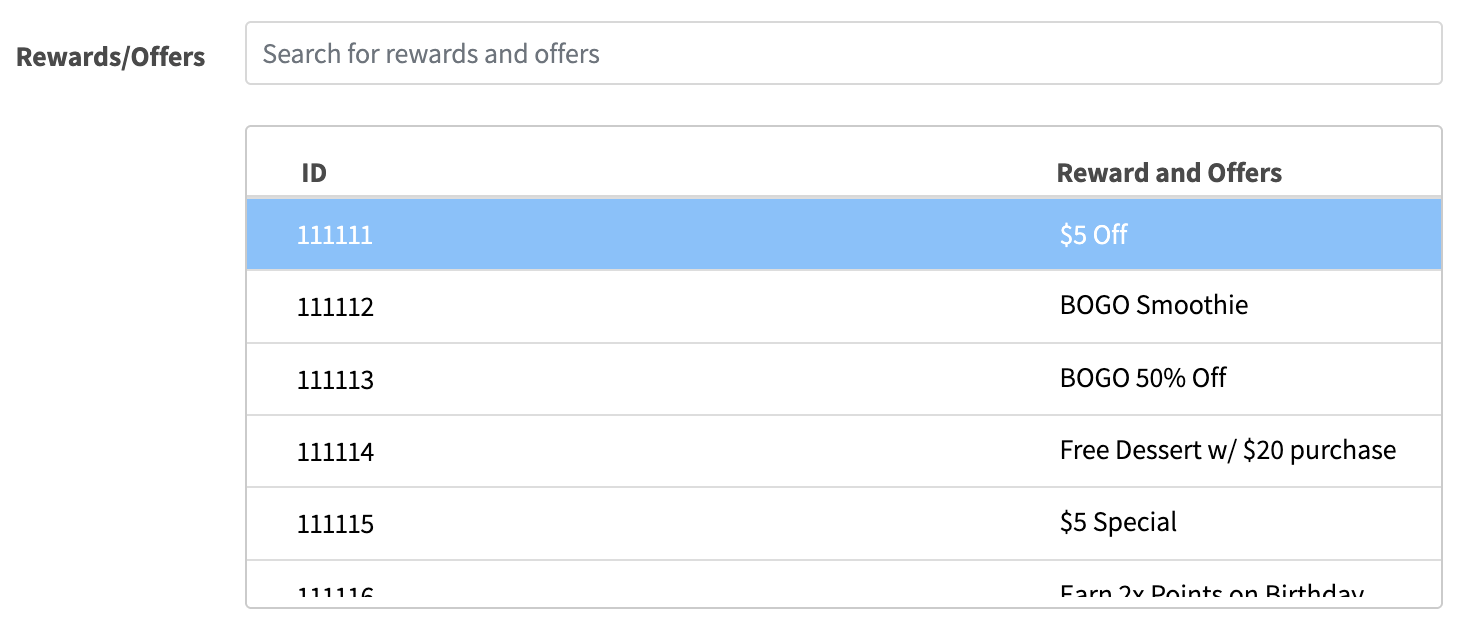
Search for your Reward/Offer.
-
Select the Reward/Offer you want to add to your member’s account.
-
Enter the Issue Date (i.e., when the offer is available for the member to use).
Notes:
• The Issue Date always starts at 00:00:00 UTC time.
• Purchase Item and Purchase Total campaign offers do not require an Issue Date, you will not be asked to enter this value. Once added, the Purchase Item or Purchase Total offer will be available for use.
-
Enter the Expiration Date (i.e., when the offer will expire)
Notes:
• The Expiration Date always ends at 11:59:59 UTC. It also must be after the Issue Date.
• Purchase Item and Purchase Total campaign offers do not require an Expiration Date, you will not be asked to enter this value. Once added, the Purchase Item or Purchase Total offer will only be removed once it has been used by the member.
-
Select a Reason you are adding the reward/offer (ex. error redeeming in-store, missing reward, testing, or other).

-
Click Add.