
A tiered campaign enables you to customize your marketing initiatives for distinct audience segments and recognize their diverse achievements or membership levels with appropriate rewards.
Campaign Examples
-
Tiers based on Spend
-
Spend $1000 in a year, get 2x points for a year.
-
Spend $2000 in a year, get 3x points for a year.
-
-
Tiers based on Visits
-
Visit 0-4 times in a month, get a BOGO offer.
-
Visit 5-9 times in a month, get a 20% Off.
-
Visit 10-14 times in a month, get a Free Meal.
-
-
Tiers based on current Points Balance
Notes: This is the current points balance and excludes points used or converted into rewards. It is not an accummalative over all time view. Use Spend, for an accummalative view over a time period.-
Points balance is 0-24 points, get 2x points on a purchase.
-
Points balance is 25-49 points, get a Free Cookie.
-
Points balance is 50-75 points, get a
-
Tip: When nearing the end of a qualifying period (e.g. a year, a month, etc.), send communications to members close to the tier threshold to remind them they are within reach and incentivize them to make their next purchase/visit before the qualifying period ends.
Create a Tiered Offer
A common campaign example is running an annual recurring campaign, where higher spending members can earn at a higher earn rate (ex. double points) for the year.
-
Go to the Campaigns.
-
Click the + New Campaign button.
-
Select the Recurring automation.
-
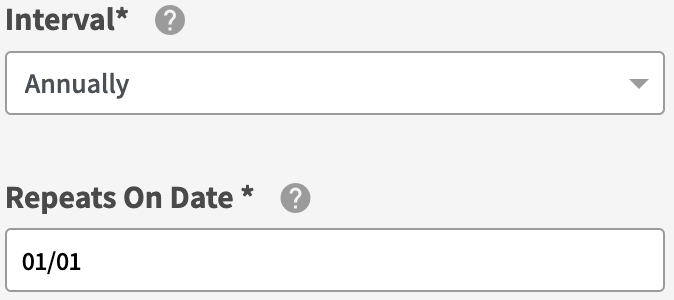
Define the Interval to Annually.
-
Set the annual Repeats On Date to January 1st (01/01) of every year, and click Next Step.
-
Schedule the time at which the offer should be available to the audience on January 1st of every year. We recommend a time at least 1 hour before your store opening.

-
Select the Offer action.
-
Enter your offer details. For this example, we’ll create a Gold Member 2x points offer.
-
Select Offer Type as Multiply Points.
-
Enter Multiply By as 2.
-
Check the offer is made Available for In-store and Online?
Notes: you can also make the offer only available in-store or online. -
Enter your Offer Name.
-
Enter your Offer Description.
-
Choose Earn Points as On Subtotal. This means points will be earned on the purchase subtotal value.
-
(Optional) Enter a Maximum Point Earn Per Purchase to cap the number of points that can be earned each purchase.
-
(Optional) Enter a Minimum Purchase Value to set a base subtotal value the purchase must meet in order to earn the bonus points. For example, double points on purchases of $10 or more.
-
Select Multiple Use for Single Or Multiple Use.

-
(Optional) Define the offer’s Multiple Use Limits to specify the maximum number of times the offer can be used within a time frame (e.g. 1 use per 24 hours).
-
(Optional) Enter the Day-part Limits to restrict the day and time of the week at which a purchase must be made to earn the double points.
-
(Optional) Enter the Maximum Offer Uses Per Member to cap the number of times the member can use their Gold Member 2x points before it expires.
-
Set the offer Expiration to Expires 365 days after earned.

-
For Participating Stores, click Select All to allow members to use the Gold Member 2x Points at all stores.
Notes: by limiting the participating stores to select stores requires clear communications to your staff and members on where the offer can be used to prevent any customer support issues.
-
-
Click Next.
-
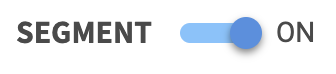
Turn the Segment ON, and maintain who you are sending this campaign to as a + New Audience.
Notes: If you have already prepared your audience, select your audience, click Next and skip to step #15.
-
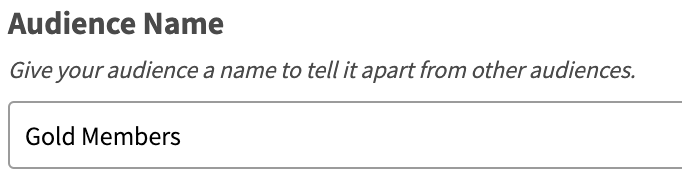
Name your new audience something easily identifiable — such as, Gold Members.
-
Maintain the Members match all conditions.

-
Click + Add to add an audience filter.
-
Enter the condition Spend | is greater than | ### | within last (days) | 365.
Notes: Enter the minimum spend you want members to exceed to qualify for the offer. This looks for all members who spent over ### in the last calendar year.
-
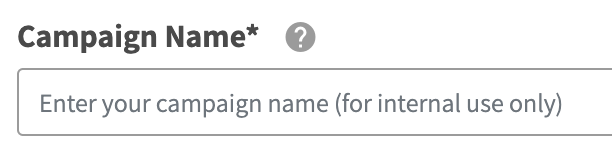
Enter a unique Campaign Name for your internal reference.
-
Schedule your campaign Start Date and time.
Note: if you set the start time after the daily recurring run time, the first time the offer is sent out will be the following day after the. campaign start date.

-
(Optional) Schedule your campaign End Date and time. If this is not defined, you campaign will be ongoing with no end date.

-
Review your campaign details and click on Schedule to create your new campaign.
-
Repeat steps 1-18 for each additional tier level.