
The Visit Threshold campaign is a way to issue offers based on a member’s total number of visits since joining your program. For example, you can reward a member on their 2nd, 5th, 10th, or 20th visit (counted from their join date over all time). This is a great way to celebrate milestones, ensure your members feel continually rewarded, and encourage them to keep engaging with your program.
Campaign Examples
-
Get a Free Mug on your 3rd visit!
By creating a giveaway incentives, you encourage guests to make more visits to earn special offers. -
Surprise & delight on their 2nd visit
Don’t send out any marketing, just surprise your loyal members with an offer on their 2nd visit. This is a great way to reward your members up front and keep their excitement high in the first days of joining. Continuing to offer subsequent visits, like their 5th or 10th visit is also a great way to make sure your rewards program is always rewarding and keeps your members engaged.
Create a Visit Threshold Offer Campaign
-
Go to the Campaigns.
-
Click the + New Campaign button.
-
Select the Visit Threshold automation.

-
Enter the Number Visits Required to earn the offer and click Next.
-
Define your offer parameters and click Next Step.
See the Offer Types and Offer Configuration Options for details on how to configure your offers. -
Enter a unique Campaign Name for your internal reference.
-
Schedule your campaign Start Date and time.

-
(Optional) Schedule your campaign End Date and time. If this is not defined, you campaign will be ongoing with no end date.

-
Review your campaign details and click on Schedule to create your new campaign.
Create a Visit Threshold Prompt Campaign
-
Go to the Campaigns.
-
Click the + New Campaign button.
-
Select the Visit Threshold automation.
-
Enter the Number Visits Required to earn the offer and click Next.
-
Select the Prompt action.
-
Define your prompt parameters:
-
Leave Available as “In-store” and Trigger Action to “Start SMS subscription flow” selections as is. These are the only possible options and are not editable.
-
Choose your prompt expiration settings:
-
No expiration will not expire

-
Expires on fixed date will expire on a fixed date and time in the future.

-
Expires after earned will expire X number of days or hours after the offer is earned.
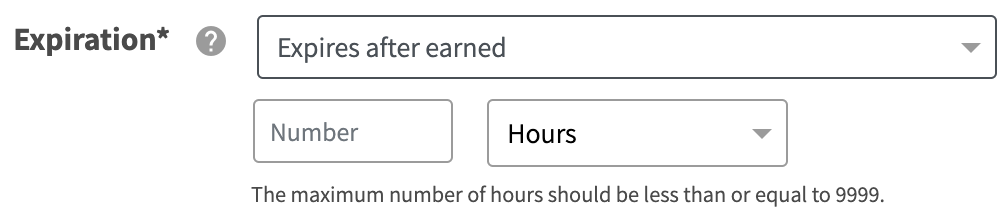
-
Expires after first presented will expire X number of days after the offer is seen by the user on the in-store tablets, mobile apps or other e-commerce integrations.

-
-
Set whether to limit the prompt to Registered Members Use Only by turning it ON. Or disable it to allow all members to see the prompt.
-
Enter the Prompt Message to be displayed to your members and click Next Step.
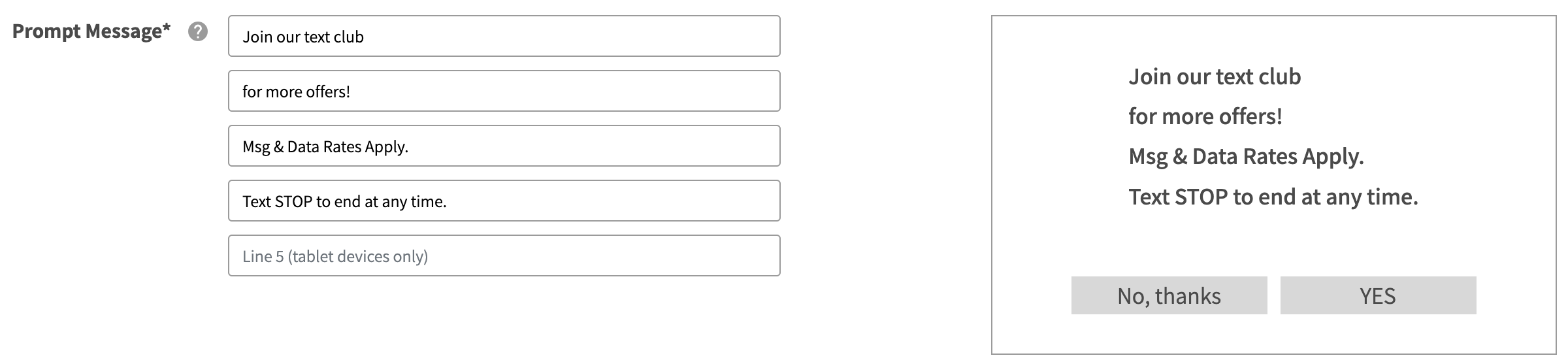
The sample display is only a visualization of your message, it is not a real display.
-
-
Enter a unique Campaign Name for your internal reference.
-
Schedule your campaign Start Date and time.
-
(Optional) Schedule your campaign End Date and time. If this is not defined, you campaign will be ongoing with no end date.
-
Review your campaign details and click on Schedule to create your new campaign.