
You can view or update a campaign at any time while it is active or before it goes live. This guide explains what you need to know before making edits and how to update campaign details in your Spendgo Dashboard.
Things to Know
-
You must have an Admin or Marketing Manager user role to manage all of your brand’s campaigns.
-
Franchisee Users with Marketing permissions can only edit the campaigns they created.
-
Editing live offer-based campaigns
Updating a live offer campaign will change the offer details for members who have already received the offer and for those who will receive it going forward.-
The only exception is the offer expiration date. If you update the expiration date, the new date applies only to offers issued going forward. Any offers already issued will keep the original expiration date and cannot be updated.
-
-
Editing live communication-based campaigns (Email, SMS, and prompts)
You can update the template or message content after the campaign goes live, and the updates will apply only to future sends or prompts. Messages that have already been delivered will not be affected.
View or Edit a Campaign
-
In your Spendgo Dashboard, navigate to Campaigns / Manage.
-
In the campaign table, locate the campaign you want to manage.
-
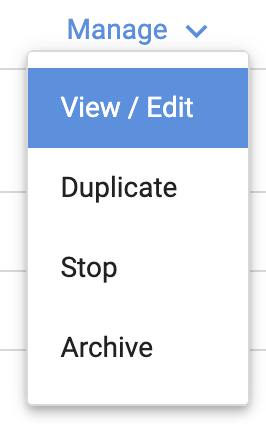
On the far right of the campaign row, click Manage / View/Edit.
-
All configured settings for the campaign will appear in View/Edit mode.
-
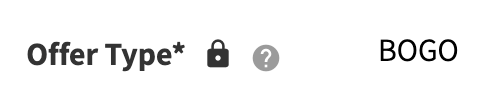
Click on any field (without a lock icon) to enable editing.
Example field that can be edited.
Example locked field that cannot be edited.
-
Enter your changes and click the green ✔️ check mark to save.
Note: Certain sensitive fields may require you to confirm changes to complete the update. To cancel your changes before saving, click the red ✖️ , and confirm you want abandon your changes and Cancel Anyway.
Related Articles
-
Create a New Campaign
Learn how to build a new campaign from scratch. -
Duplicate a Campaign
Quickly copy an existing campaign’s settings for reuse. -
Stop a Campaign
End a live campaign immediately. -
Archive a Campaign
Remove a campaign from your active view once it’s no longer needed.