
Use a Percentage Discount ( % ) to give a limited time discount on all or specific products.
Examples
Here are some examples of how you can use Percentage Discount ( % ) offers to drive your business goals.
-
20% off an entire purchase of $100 or more
Increase your average ticket spend with an incentive to spend and save more. -
20% off select items
Drive members to try new items or sell excess inventory to make room for new products. -
Membership only 10% off all purchases for 1 year
Offer exclusive discounts to members as a reward for their loyalty. -
Tiered percentage discounts increased based on spend
Recognize members who spend more with greater discounts, and motivate other members to strive for higher-tiered discounts. -
Percentage Off BOGOs (ex. BOGO 50%)
Instead of a tradition Buy One Get One Free, you can use the Percentage Discount Offer type to give away a partial discount instead of a free item. -
Buy 3 get, 1 Free (i.e. the 3rd item is free)
A standard BOGO only requires buying 2 items to get 1 free. However, using the Percentage Discount Offer type allows for more advanced setups—like requiring a member to buy 3 items to get 1 free.
Learn more here: Example Offers & Item Groups
Things to Know
-
This discount value is calculated based on the basket subtotal. The basket subtotal is the sum of all qualifying items — this means tax, tip, and most other service charges will not be included.
-
Some items will not be included in the discount value, when items have been marked as non-qualifying for discounting. For example, alcohol items may not want to be discounted. If a purchase includes one $6 beer and one $10 burger, plus a 10% discount — the percent discount will be $1, excluding the beer from the discount.
-
Percentage discount offer type is not available for the Purchase Total campaign automation. If you’re looking to create a percentage discount based on a member making a purchase, use the alternate method by creating a Recurring campaign offer targeted to an audience based on when their last visits (i.e. purchases) were made.
Create a Percentage Discount Offer
-
Navigate to Campaigns / Create.
-
Choose your Automation and click Next Step.
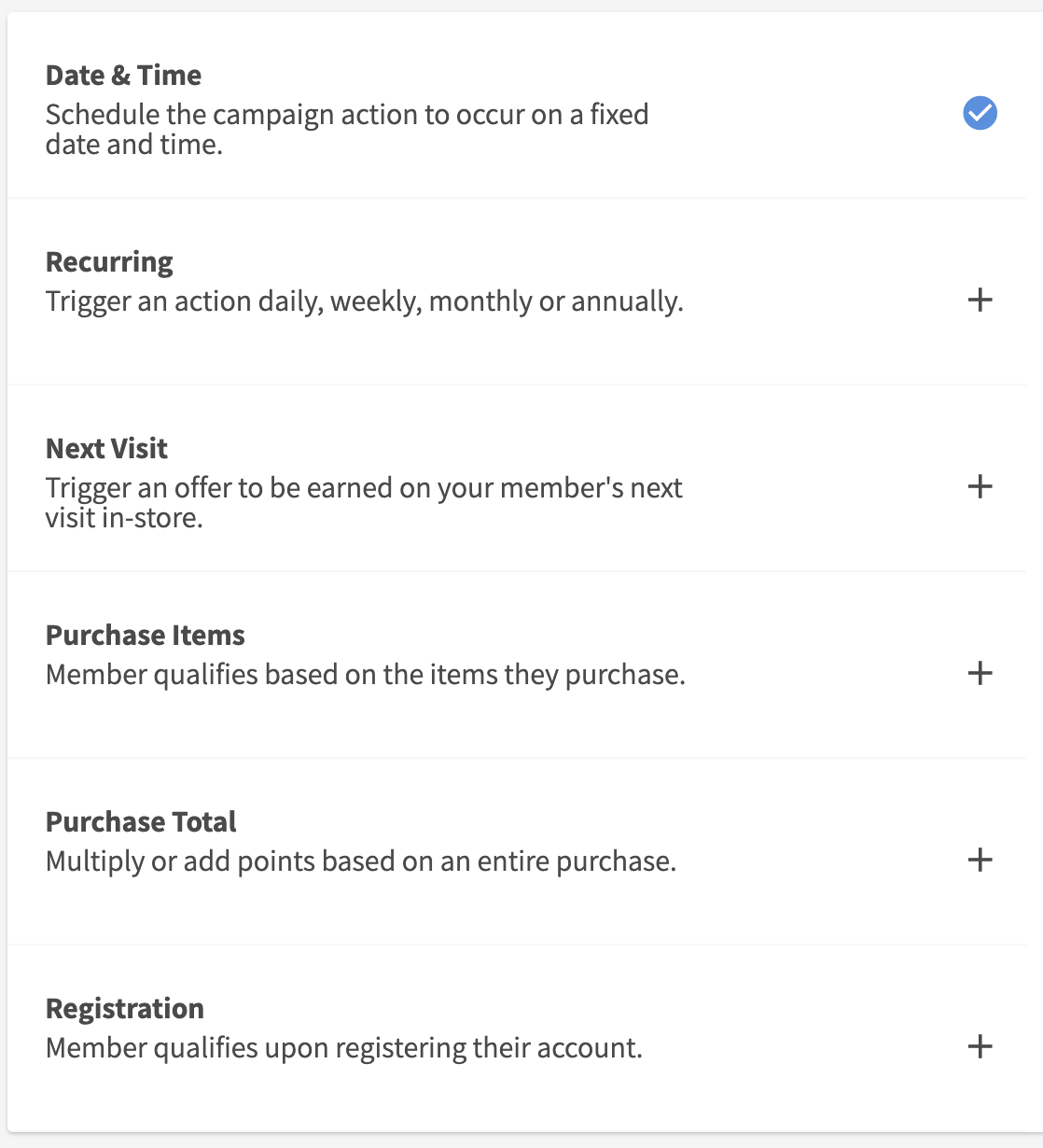
-
Choose the Offer action.
Notes: some automation will automatically navigate you to the offer setup when no other action options are available.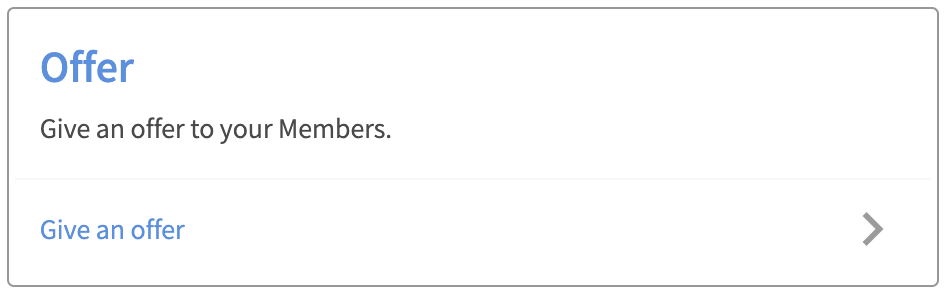
-
Choose Discount ( % ) as your Offer Type.

-
Define your offer parameters.
See Percentage Discount (%) Offer Configurations for details on how to configure your offers.
Notes: the campaign builder will determine for you which fields are required and options for your offer type selection. Enter all required fields displayed. -
Click Next Step.
-
Set your target audience.
Notes: the audience step is only relevant for Date & Time and Recurring automation types. All other automation types are triggered based on when the member meets the event criteria.-
To target all members, leave the audience Segment OFF.
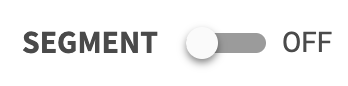
-
To target a specific audience, turn Segment ON. Select an existing audience or create a new audience within the builder.
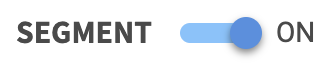
-
-
Click Next Step.
-
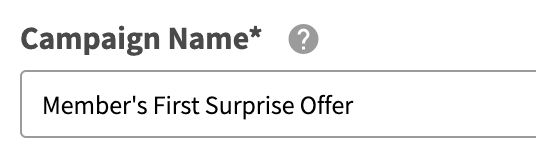
Enter a unique Campaign Name for your internal reference.
-
Schedule your campaign Start Date and time.
-

(Optional) Schedule your campaign End Date and time. If this is not defined, you campaign will be ongoing with no end date.

-
Review your campaign details and click on Schedule to create your new campaign.
Percentage Discount (%) Offer Configurations
Below is a list of all the configurations available for a Percentage Discount Offer. See Offer Configuration Options for details on how to configure your offers.
|
Field |
Type |
Required |
Description |
Example / Notes |
|---|---|---|---|---|
|
Offer Type |
Dropdown |
✅ Yes |
Defines the type of offer being created. |
You’ve selected Discount (%). |
|
Available |
Checkbox Group |
✅ Yes |
Determines if the offer is valid in-store, online, or both. |
Supports dual environments. |
|
Offer Name |
Text Input |
✅ Yes |
Short internal name for the offer; must be concise. |
Caution: longer names may not display in integrations. |
|
Offer Description |
Text Input |
✅ Yes |
A brief explanation of what the discount offer does. |
Include any conditions or restrictions. |
|
Offer Value |
Text Input (Numeric) |
✅ Yes |
The percentage value to discount. |
Example: |
|
Discount Code |
Text Input |
Optional |
POS discount code, if applicable. |
Used to map discounts with in-store or online systems. |
|
Qualifying Rule |
Radio Button |
✅ Yes |
Applies the rule to either the Basket or a specific Item. |
Choose based on where the discount should apply. |
|
Qualifying Item Group |
Dropdown |
✅ if “Item” |
Defines which items trigger the discount. |
Appears only when Item is selected as Qualifying Rule. |
|
Reward Item Group |
Dropdown |
✅ if “Item” |
Defines which items the discount is applied to. |
Appears only when Item is selected as Qualifying Rule. Learn more about Item Groups. |
|
Single or Multiple Use |
Radio Button |
✅ Yes |
Choose whether members can use the offer once or multiple times. |
Select |
|
Multiple Use Limits |
Dropdown + Inputs |
Optional |
Restricts redemptions within a specific time frame. |
Example: 1 use per 2 hours. Leave blank for unlimited. |
|
→ Limit Type |
Dropdown |
✅ (if used) |
Time unit for limits (e.g., by hour). |
The only option is |
|
→ Number of Uses |
Integer |
Optional |
Max redemptions allowed in the selected window. |
Example: |
|
→ Time Window (in hours) |
Integer (1–24) |
Optional |
Time frame (in hours) for limiting redemptions. |
Example: |
|
Maximum Offer Uses Per Member |
Integer |
Optional |
Total redemptions per member for the entire duration. |
Leave blank for unlimited. |
|
Minimum Purchase Value |
Text Input (Currency) |
Optional |
The order must meet this value before the discount can be applied. |
Example: |
|
Day-part Limits |
Time Range Selector |
Optional |
Restricts offer usage by time of day and day of week. |
Example: |
|
Expiration |
Dropdown |
Optional |
Controls how and when the offer expires. |
See detailed options below ⬇ |
|
→ No expiration |
Option |
— |
The offer will remain active indefinitely. |
Useful for evergreen offers, but not advised for unlimited use cases. |
|
→ Expires on fixed date |
Option + Date Picker |
✅ if chosen |
Sets a specific calendar date, time, and timezone when the offer expires. |
Example: Expires on 12/31/2025 at 12:00 PM America/Los_Angeles. |
|
→ Expires after earned |
Option + Duration |
✅ if chosen |
Sets expiration based on the number of UTC days or hours after the offer is earned. |
Example: Expires 7 days after earning. |
|
→ Expires after first presented |
Option + Duration |
✅ if chosen |
Sets expiration based on the number of UTC days after the offer is shown to the member. |
Example: Expires 3 days after being shown. |
|
Registered Member Use Only |
Toggle |
Optional |
Restricts the offer to registered loyalty program members only. |
ON = members only. |
|
Participating Locations |
Store Picker / CSV |
✅ Yes |
Select stores or upload list for offer availability. |
Max 250 stores or all stores. |
Advanced Settings
|
Setting |
Type |
Default |
Description |
Help Link |
|---|---|---|---|---|
|
Exclude Modifiers in Discount |
Toggle |
ON |
Excludes item modifiers from the discount calculation entirely. |
|
|
Apply Offer to Lowest Value Item |
Toggle |
ON |
Applies the discount to the lowest-priced eligible reward item in the group. |
|
|
Sum Parent & Modifiers for Discount |
Toggle |
ON |
Combines the base item and its modifiers when determining eligibility or discount value. |