
In this article, you'll learn how to create an audience from the campaign builder. You’ll also learn how to send a campaign to existing audiences, or new audiences.
Create a New Audience within the Campaign Builder
-
Navigate to Campaigns / Create.
-
Select your campaign automation to send on a Date & Time or Recurring interval.
Note: if you select Recurring, you will need to define the cadence at which your campaign will send. -
Select your action to send an offer, email, or text message.

-
Prepare and enter your offer details, email campaign mapping or text message details and click Next Step.
-
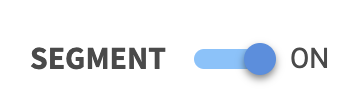
Turn the audience Segment ON.
-
To build a new audience in the campaign builder, keep who you are sending to as + New Audience.

-
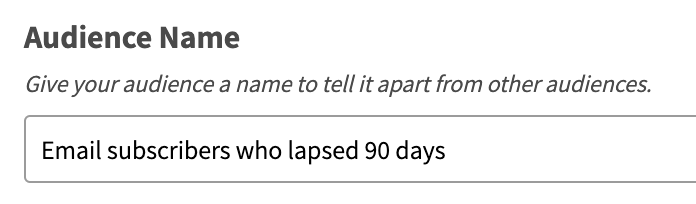
Give your new audience an easily identifiable name.
-
Define whether your audience is to match any or all of the filters.

-
Click
-
Select filter and set its conditions. For example, to target those who lapsed 90 days, enter Visits | is | 0 | with last (hours) | Enter value input days (e.g. Visits | is | 0 | with last (hours) | 2160).
Click -
Review your audience settings and click Next Step.
-
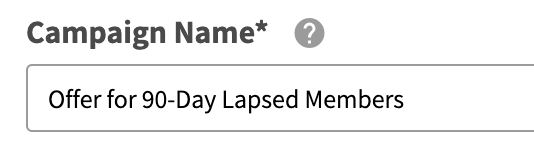
Enter a unique Campaign Name for your internal reference.
-
Schedule your campaign Start Date and time.

-
(Recurring campaigns only) Schedule your campaign End Date and time. If this is not defined, your campaign will be ongoing with no end date.

-
Review your campaign details and click on Schedule.
Create a Campaign Targeted to Exisitng Audience
-
Navigate to Campaigns / Create.
-
Select your campaign automation to send on a Date & Time or Recurring interval.
Note: if you select Recurring, you will need to define the cadence at which your campaign will send. -
Select your action to send an offer, email, or text message.
-
Prepare and enter your offer details, email campaign mapping or text message details and click Next Step.
-
Turn the audience segment ON
-
Choose who you are sending to from the dropdown of saved audiences and click Next Step.

-
Enter a unique Campaign Name for your internal reference.
-
Schedule your campaign Start Date and time.
-
(Recurring campaigns only) Schedule your campaign End Date and time. If this is not defined, your campaign will be ongoing with no end date.
-
Review your campaign details and click on Schedule.